
What is the Navigation Bar?
 Once navigation bar is enabled, click at the middle bottom of the background to call out the function.
- Main menu, Click to go to the main menu interface.
- Click to select screen 2, you can view an interface shown as figure 2. It is a navigation bar for screen2.
- Click any screen split mode, HDMI2 screen can display corresponding screens.
Note: This function is for 2 HDMI model only. Screen 2 function is null if tour is in process, Please disable tour function first. - Click button to enable tour, the icon becomes , you can see the tour is in process.
- Click , system goes to the PTZ control interface.
- Click , system goes to the Color interface.
- Click button , system goes to Search interface.
- Click button , system goes to Alarm status interface.
- Click button , system goes to the Channel Information setup interface
- Click button, system goes to the remote device interface.
- Click button, system goes to the network interface. It is to set network IP address, default gateway and etc.
- Click button, system goes to the HDD manage interface
- Click button, system goes to the USB manage interface
How to Turn on the Navigation Bar?
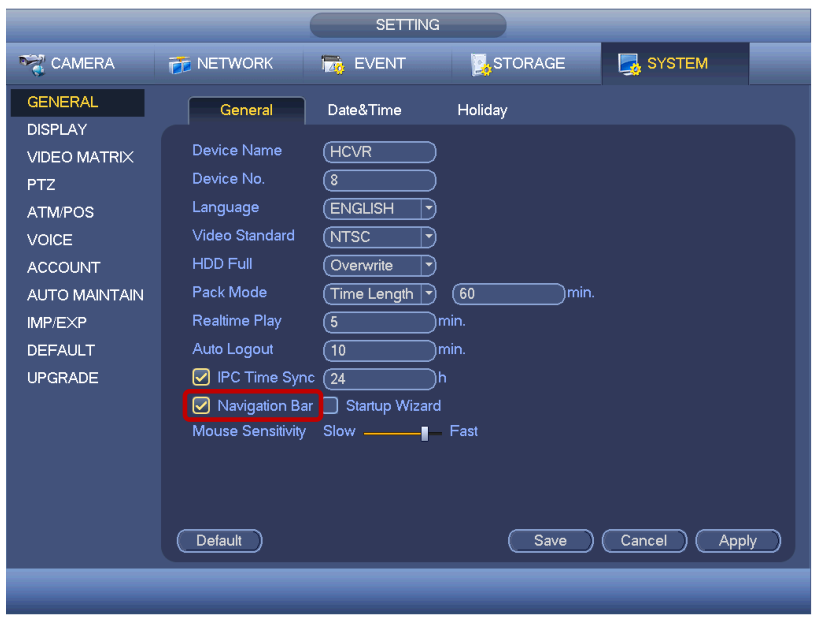
- Open main menu, SETTINGS->SYSTEM->general, tick in the red box to enable navigation bar.
- Using navigation bar, users can do some quick operations.